Staff training sessions in Google Forms, with a place limit on each
Give each training session the number of places it has. A full session closes on the form, and staff who still need it join the waiting list.
 Install from Marketplace
Free for one form up to 25 responses. Then $12 once, with no subscription.
First aid refresher
Choose a session (multiple choice)
- Tuesday, 9:30 am12 places
- Thursday, 1:30 pmFull · 2 waiting
- Friday, 9:30 am12 places
Who it is for
Staff book with your ordinary Google Form, signed in with their work account if you like. Their answers stay in your organisation's Google account.
Staff training sessions
- HR and office managers booking staff onto training dates.
- Team leads running onboarding sessions for new starters.
- First aid, fire safety and other courses with a fixed number of places.
First aid refresher
Choose a session (multiple choice)
- Tuesday, 9:30 am12 places
- Thursday, 1:30 pmFull · 2 waiting
- Friday, 9:30 am12 places
The options and their limits
Three sessions of twelve. When Tuesday is full, it closes on the form and staff choose Thursday or Friday.
In this example Thursday, 1:30 pm is full and two people are waiting for it.
36 places in total. That is more than the free plan covers. Setup tells you before you share the form, and unlocking costs $12, paid once.
How to set it up
Start from a copy of this form, or from a form you already have.
- 1Add the sessionsMake a multiple-choice question with one option per session.
- 2Collect email addressesIn the form's Settings, under Responses, set Collect email addresses to Verified, so staff sign in with their work account.
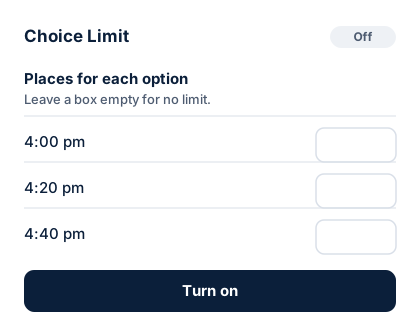
- 3Type the places in each sessionOpen Choice Limit from the add-ons button and type a number beside each session.
- 4Choose Show it as full, with a waiting listYou can then see who still needs a place, and they move up if someone drops out.
- 5Turn on and sharePress Turn on, then send the form link to your staff.
First aid refresher
You are on the waiting list for Thursday, 1:30 pm
Every place for Thursday, 1:30 pm is taken at the moment, so you are on the waiting list.
Option
Thursday, 1:30 pm
On the waiting listWhat people see
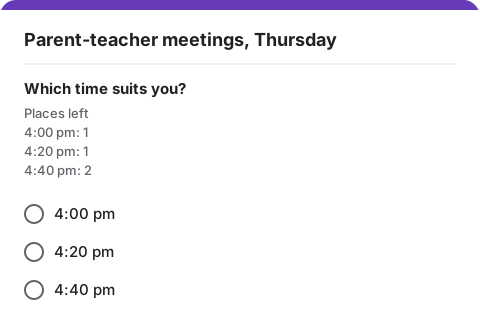
People fill in your ordinary Google Form. Under the question they see how many places are left for each option. A full option is hidden, or marked "full, join the waiting list".
- Anyone who joins a waiting list gets an email with their number in line.
- When a place opens up, the next person gets it and an email saying so.
- Emails come from your own Google account, so replies come to you.
Good to know
What Choice Limit does and does not do for this kind of form. Read the help page for more.
Work accounts
Your Google Workspace administrator has to allow add-ons from the Google Workspace Marketplace.
Someone cannot attend
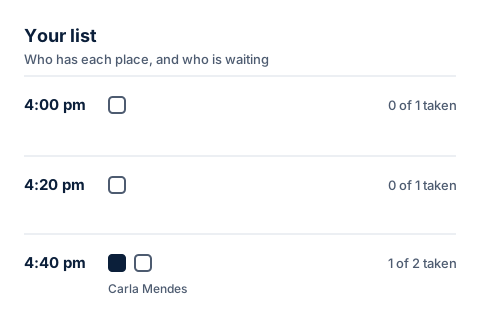
Press Free this place in Your list. The first person waiting for that session gets it and an email.
Calendar invites
Choice Limit does not add sessions to anyone's calendar. Send invites the way you do now.
Booking twice
Your list marks anyone who booked more than once, so you can free the extra place.
Set limits on your staff training sessions form
Install Choice Limit from the Google Workspace Marketplace, then make a copy of this form. Free for one form up to 25 responses, then $12 once.