How can we help?
Setting limits on a Google Form™, what happens when an option is full, and what to do when something does not work as you expect.
Help topics
Install
Get Choice Limit from the Marketplace and open it in your form.
Set limits
Type how many people can pick each option, then turn it on.
Waiting list
Who waits, who moves up, and how to free a place.
Emails
Who gets an email, when, and Google's daily limit.
Free plan
One form and 25 responses, then $12 once.
Troubleshooting
Missing emails, permission requests and options that stay open.
Installing Choice Limit
- Open Choice Limit on the Google Workspace Marketplace.
- Press Install. Google asks you to allow a few permissions. Our privacy policy lists each one and why it is needed.
- Open your form in Google Forms and click the add-ons button (the puzzle piece) at the top of the page.
- Choose Choice Limit, then Open.
You can also install it from inside a form: click the add-ons button, then Get add-ons, and search for Choice Limit.
With a school or work account, your administrator has to allow add-ons from the Google Workspace Marketplace. If you cannot install it, ask them.
 Install from Marketplace
Setting up limits
Choice Limit works with multiple choice, dropdown and checkbox questions. Make your form as usual first, with one option for each time, shift or item.
- In your form, click the add-ons button, choose Choice Limit, then Open. The side panel opens on the Setup tab.
- Type how many people can pick each option. For example, type 1 beside each meeting time, or 5 beside a shift that needs five helpers. Leave a box empty for no limit.
- Choose what happens when an option is full: Hide it from the form, or Show it as full, with a waiting list.
- Press Turn on. Choice Limit checks your form first and tells you if anything needs fixing, such as email addresses not being collected.
- Share your form with its usual link. The link does not change.
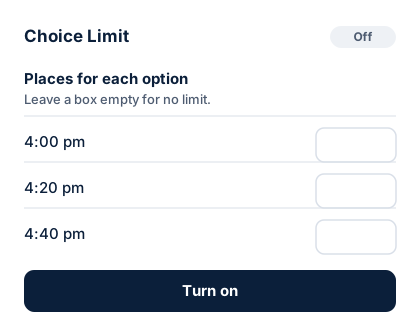
More settings
- Show places left under the question. On by default.
- Stop accepting responses when every place is taken. Closes the whole form once every limited option is full.
- Email me. Once when every place is taken, each time an option fills, or never.
- Show people by. Choose a short-answer question, such as "Child's name", and Your list shows each person by that answer instead of their email address.
- Language of the form. The language of the words Choice Limit adds to your form and of the emails to respondents.
While limits are on, change options in Choice Limit's Setup, not in the form editor. Choice Limit relabels and hides options itself, and edits made in the form editor at the same time can get mixed up with its changes.
What people see on the form
People fill in your ordinary Google Form. Under each limited question they see "Places left" and the number left for each option, one per line.
When an option is full, it disappears from the form, or it stays with the words "full, join the waiting list" after it, depending on what you chose. If every place is taken and you asked for it, the form stops accepting responses and says "All places are taken."
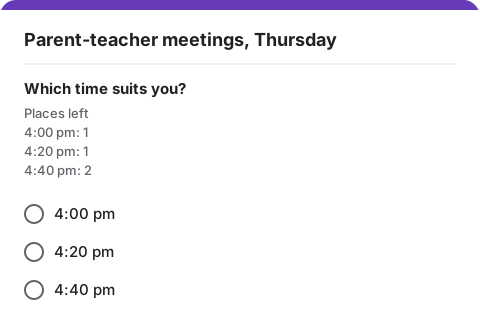
The waiting list
If you chose Show it as full, with a waiting list, anyone who picks a full option joins its waiting list. They get an email saying so, with their number on the list and a link to fill in the form again if another option suits them.
If you chose Hide it from the form, nobody can pick a full option, so the waiting list only fills when two people send the form at almost the same moment (see below).
The Your list tab shows who holds each place and who is waiting, in the order they signed up. If you raise a limit, the first people on the waiting list move up into the new places. If you lower a limit, nobody loses a place they already have; the option shows as over the limit until enough places are freed.
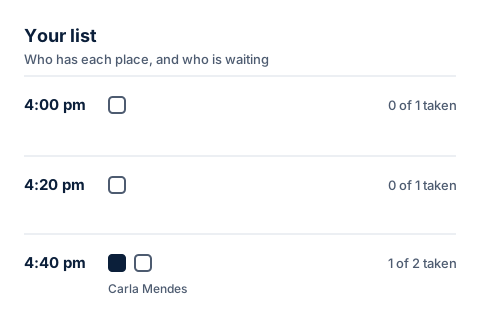
Freeing a place
When someone cancels, open Your list and press Free this place beside their name, then confirm. The first person on that option's waiting list gets the place and an email telling them. If nobody is waiting, the place opens again on the form.
Before you confirm, you can untick Email the person whose place I free if you have already spoken to them. Freeing a place does not delete their response from Google Forms.
If someone picked several options in a checkbox question, freeing one place leaves their other places as they are.
Emails
Every email is sent from your own Google account, so replies come to you.
| Who | When |
|---|---|
| The person signing up | When they join a waiting list, when a place becomes theirs, and when you free their place (unless you untick it). |
| You | When an option fills or every place is taken, as set under Email me. Also, always: when the free plan is nearly used or used up, when Google's daily email limit stopped some emails, and when Google needs your permission again. |
People who get a place straight away are not emailed by Choice Limit. If you want them to have a copy of their answers, turn on Google Forms' own response receipts in the form's Settings.
Google limits how many emails an account can send each day: about 100 recipients for a personal Google account, more for most school and work accounts. If the limit is reached, Choice Limit keeps handing out places and updating the form, and Your list marks the people it could not email as Not emailed.
Collecting email addresses
Choice Limit can only tell people about the waiting list if your form collects their email address. Setup checks this before you turn limits on.
- In your form, open the Settings tab.
- Open Responses.
- Set Collect email addresses to Verified or Responder input.
Verified asks people to sign in to Google and uses their account address. Responder input lets them type any address, which suits parents without a Google account.
The free plan
- It covers one form at a time. To use it on a different form, turn limits off on the first one.
- It covers up to 25 responses after limits are turned on. Setup tells you if your limits add up to more than 25 places.
- At 20 responses, you get an email. At 25, the form stops taking new responses so that nobody is overbooked, and people who open it see "This sign-up is full for now." The responses you already have are kept.
Unlocking costs $12, paid once, with no subscription. It covers every form on your Google account, with no cap on responses, and reopens a form that stopped at 25 straight away.
Something is not working
The form is not collecting email addresses
Setup shows "The form does not collect email addresses". Turn it on in the form's Settings, under Responses, as described in Collecting email addresses, then press Turn on or Save changes again.
People who signed up before you turned it on have no address, so Your list marks them as Not emailed. You may need to contact them yourself.
Choice Limit asks for permission again
Sometimes Google needs you to allow Choice Limit again, for example after you removed its access in your Google Account, or after an update asks for a new permission. Until you do, Choice Limit stops updating your form: full options are not hidden, and nobody is told about the waiting list.
You get an email titled "Choice Limit needs your permission again". Press Allow Choice Limit again in it and follow Google's steps, or open Choice Limit from the add-ons menu of your form and allow it there. Then open Your list to check where things stand.
A full option did not close at once
Choice Limit applies limits a few seconds after each response arrives, so there is always a short gap. Two things can happen in that gap:
- Two people send the form within the same few seconds and both pick the last place. Google accepts both answers. Choice Limit keeps the place for the first, puts the second on the waiting list, and emails them.
- Someone opened the form before the option filled. They still see it until they reload the page. If they pick it, they go on the waiting list.
Either way, nobody is overbooked in Your list. If an option still shows on the form minutes later, check that limits are on in Setup and that you have not had an email asking for permission again.
"The free plan is in use on another form"
The free plan covers one form at a time. Open Choice Limit on the form it names and press Turn off, or unlock every form for $12.
Still stuck?
Email [SUPPORT EMAIL] and tell us what you see. A screenshot of the side panel helps. Please do not send us your respondents' answers.